
Install the app
How to install the app on iOS
Follow along with the video below to see how to install our site as a web app on your home screen.
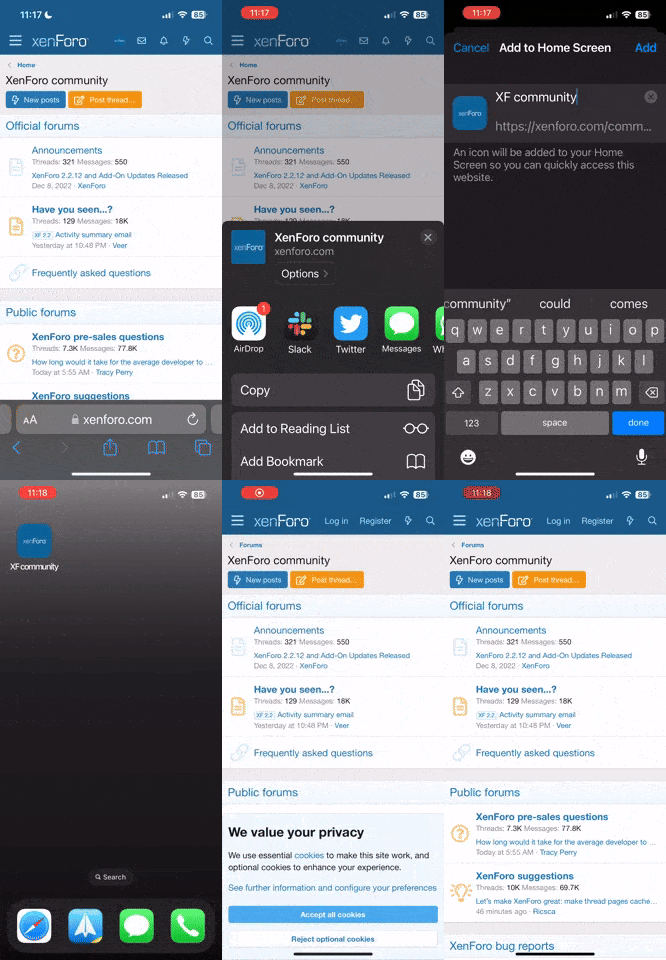
Note: This feature currently requires accessing the site using the built-in Safari browser.
You are using an out of date browser. It may not display this or other websites correctly.
You should upgrade or use an alternative browser.
You should upgrade or use an alternative browser.
windows wont start
- Thread starter lowIQ
- Start date

megamaced
Geek Geek Geek!
Your being a bit defeatist aren't you? You want to completely reinstall your Operating System just because Windows won't load properly? :rolleyes: Your never going to learn how to fix things with that attitude!
Reboot your computer, and before Windows starts to load press F8. Then select safe mode from the menu. Now you should be able to get into Windows. Uninstall the program/drivers that are causing your problems, then restart your computer
Reboot your computer, and before Windows starts to load press F8. Then select safe mode from the menu. Now you should be able to get into Windows. Uninstall the program/drivers that are causing your problems, then restart your computer
i havent said the full story i had just used system restor after having big problems after attempting to overclock my g card i wasnt shure if i tried to flash the bios on my g card or not and even tho i got it to 55xx points in 3dmark 2005 from its stock 44xx it was getting seriously low fps on games. after that i started to reinslall all the drivers since the pc is under a week old and thats when it happend now i just whnna clean install xp and start over i dont whnna over clock anything 2 much hastle :D can u tell me how to clean install xp just from the os cd please

megamaced
Geek Geek Geek!
lowIQ said:how do i do that pelvis and after i set that up if i say left a game cd in the drive after and started it up wud it try to boot that :D
-Boot your computer and keep tapping delete (also try F2, F8 or F10).
-Navagate to boot options
-Make sure your CD-ROM is the first device in the list
-Exit saving changes.
Only bootable CDs such as Windows XP will boot upon system restart. If your CD-ROM drive has a PC game inserted, your computer will ignore it and boot into the OS

Karanislove
It's D Grav80 Of Luv
Start or restart your computer~!
Press Del Button as soon as you see text on the screen
A DOS type menu should now appear
Look at the BIOS menu and you should see an option marked 'Advanced BIOS Features.' Use the up and down arrow keys and highlight this option then press Enter.
When the Advanced BIOS Features window opens look down the list until you come across an entry marked 'First Boot Device.'
If your CD is the first boot device then this should read CD-ROM.
By using the PAGEUP and PAGEDOWN keys you should be able to toggle through the First Boot Device Options and change it accordingly.
For convenience i always use the following options:
First Boot Device CD-ROM
Second Boot Device Floppy
Third Boot Device Hard Drive (0)
By using these options you will not need to alter the boot up sequence after you have finished installing your operating system.
Once you have made the necessary changes to the boot sequence press ESC to return back to the main menu.
Finally, using the up and down arrow keys select the option Save and Exit CMOS
You need to confirm that you want this option to execute, so press Y followed by Enter.
Your changes will now be saved
Your PC will now reboot, so quickly insert your Windows XP or ME CD into your CD-ROM so that setup can begin installing your operating system
Press Del Button as soon as you see text on the screen
A DOS type menu should now appear
Look at the BIOS menu and you should see an option marked 'Advanced BIOS Features.' Use the up and down arrow keys and highlight this option then press Enter.
When the Advanced BIOS Features window opens look down the list until you come across an entry marked 'First Boot Device.'
If your CD is the first boot device then this should read CD-ROM.
By using the PAGEUP and PAGEDOWN keys you should be able to toggle through the First Boot Device Options and change it accordingly.
For convenience i always use the following options:
First Boot Device CD-ROM
Second Boot Device Floppy
Third Boot Device Hard Drive (0)
By using these options you will not need to alter the boot up sequence after you have finished installing your operating system.
Once you have made the necessary changes to the boot sequence press ESC to return back to the main menu.
Finally, using the up and down arrow keys select the option Save and Exit CMOS
You need to confirm that you want this option to execute, so press Y followed by Enter.
Your changes will now be saved
Your PC will now reboot, so quickly insert your Windows XP or ME CD into your CD-ROM so that setup can begin installing your operating system